Introducing Maply Credits
We’re introducing Maply Credits to give you greater flexibility in how you use Maply—especially when it comes to uploading locations and unlocking additional features.
Until now, each subscription plan came with fixed limits on the number of records you could upload without geocoding. If you needed to exceed those limits, the only option was to upgrade to a higher plan. And if you were already on the Max plan, reaching your usage cap meant you simply couldn’t upload more locations.
Maply Credits change that. With credits, you can extend your usage beyond your plan’s limits—without upgrading—so you stay in control and only pay for what you need.
| Activity | Credit required |
| Upload locations without geocodes | 1 credit per location |
| Upload network without geocode | 2 credits per location pair |
| Get driving distance and time | 1 credit per location pair |
| Upload radius bubbles without geocodes | 1 credit per radius bubble |
| Upload territory templates | 0 credit |
With Maply Credits (login is required to access this page), you can now go beyond your plan’s upload limits by purchasing credits, without having to upgrade your subscription. This allows you to scale usage based on your actual needs. On the left is how the credits can be used to upload more than what is limited by your plan. Credits are only consumed when usage exceeds your plan’s included limits.
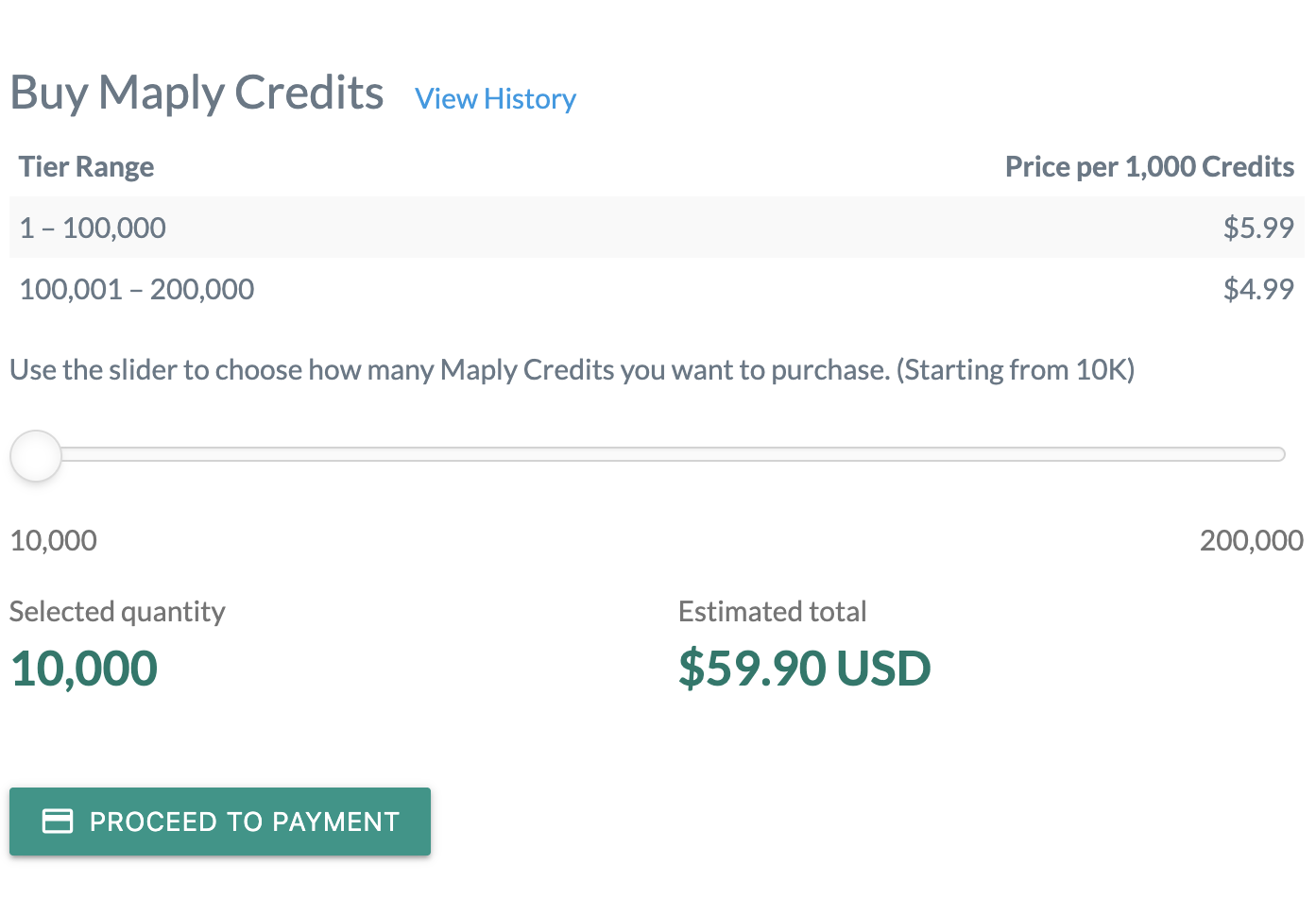
The price of credits is as shown on the right. Buying more credits at a time means you get a slight discount. Use the slider to choose the quantity of Maply Credits where you have to buy a minimum of 10,000 credits.
How to access Maply Credits
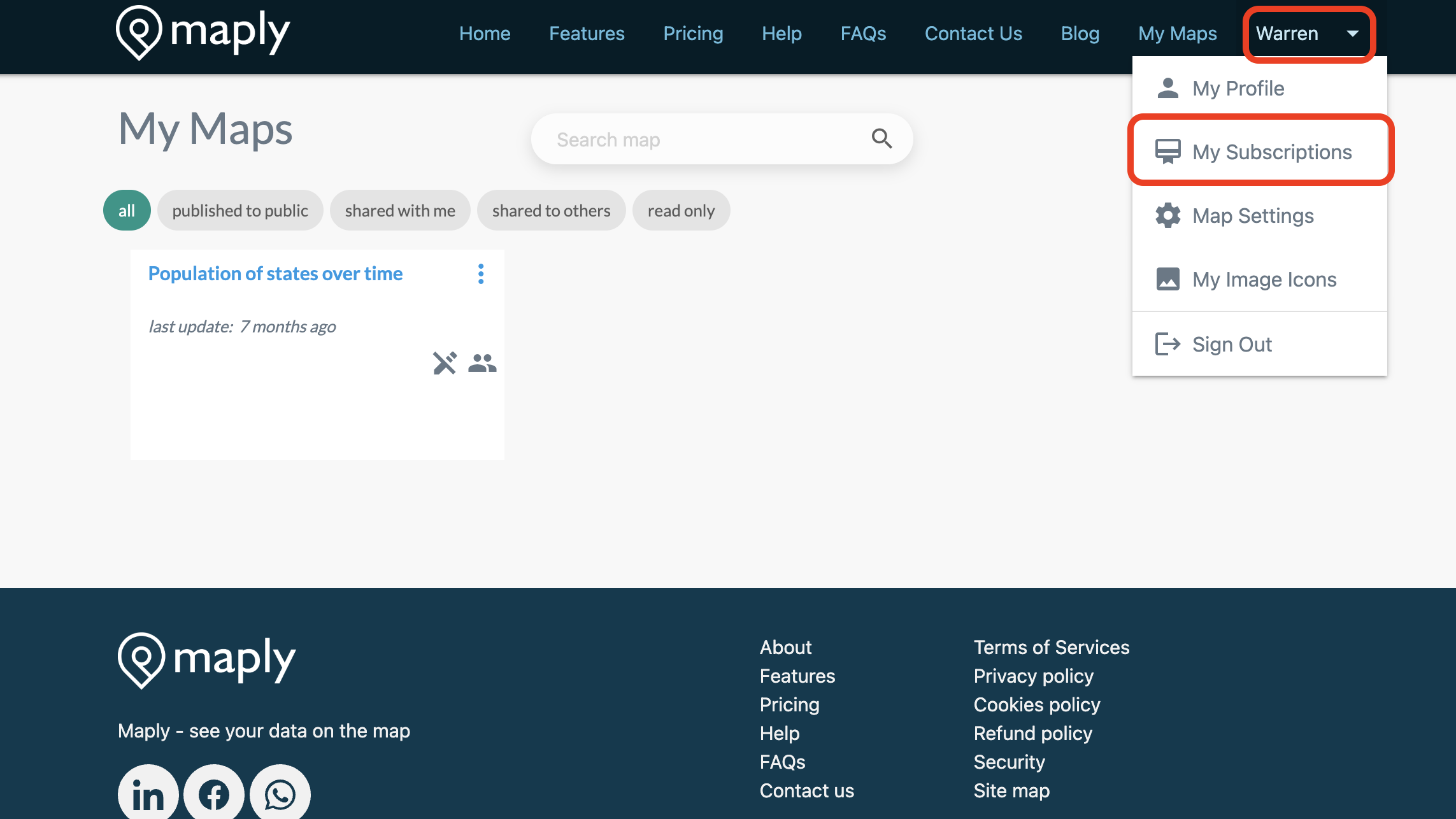
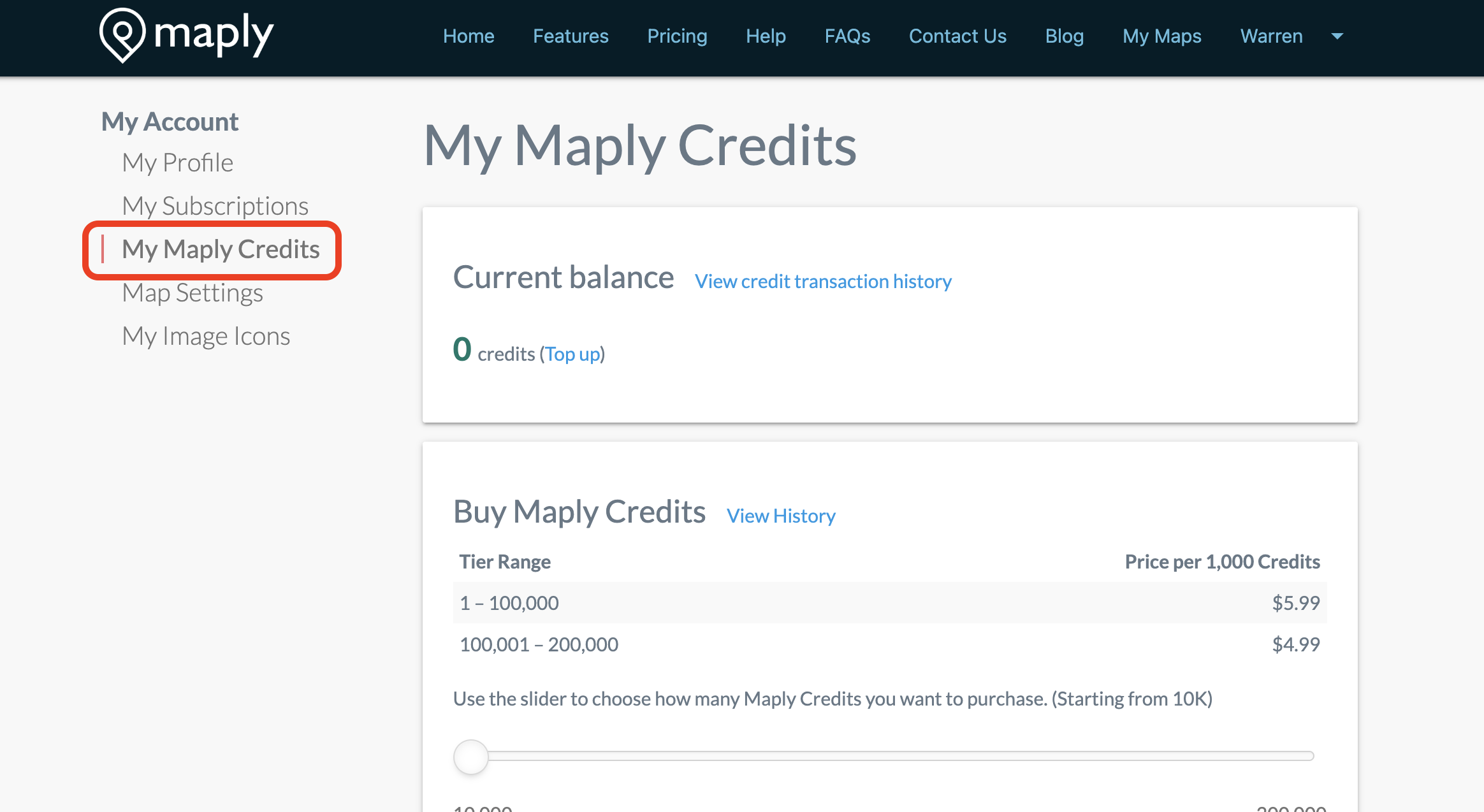
To view the number of credits left or if you want to buy more credits, click on the ‘My Profile’ on the top right corner of the webpage (if this button isn’t available for you, try selecting the ‘My Maps’ button first) and then select the ‘My Maply Credits’
Want to stay updated with Maply? Check out our LinkedIn
footnotes:
To view how many records you have available and how many you have used, as well as the number of credits purchased, you can select on ‘My Profile’ on the top right of the webpage (if this option is not available, try clicking on ‘my maps’ first after logging in). click on ‘My Subscriptions’ and you’ll find the information on the right side of the page.